A shortcut from the email you’re reading.
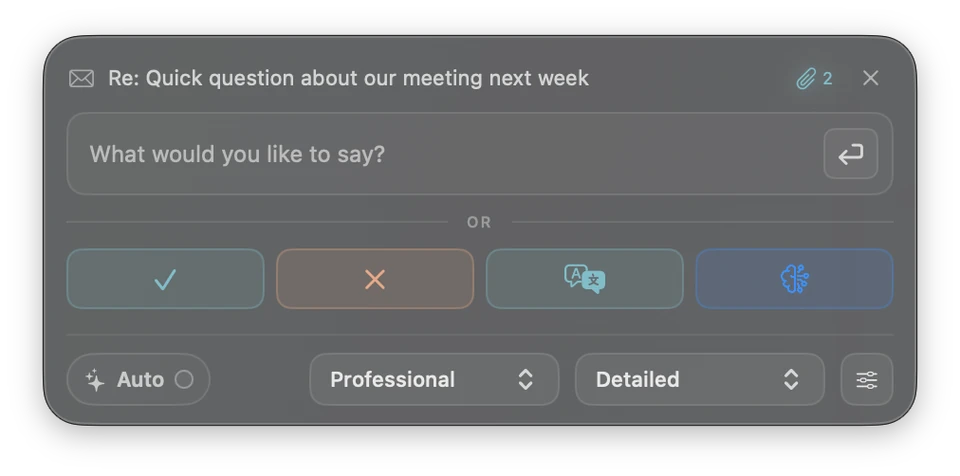
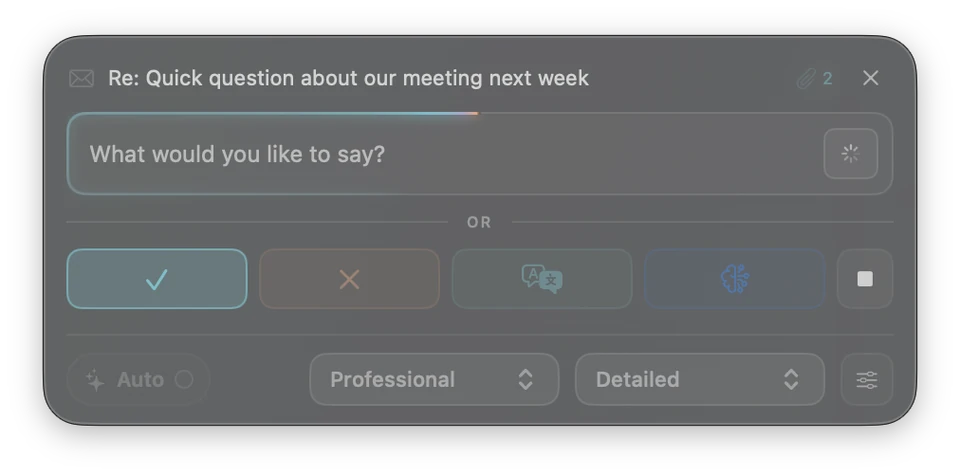
Select a message in Apple Mail and open LittleDraft with your keyboard shortcut. Choose Confirm, Decline, or Ask details, or add your own instruction.
“The order will ship on Friday” can be enough to start a complete answer, shaped by the conversation and your settings.
Two ways to say it, with room to adjust.
Use your learned writing style or choose a professional, warm and friendly, formal, or direct tone. Keep the reply brief or ask for more detail.
Your instructions can take priority over your usual style, so each conversation gets the treatment it needs.
Review it where you’ll send it.
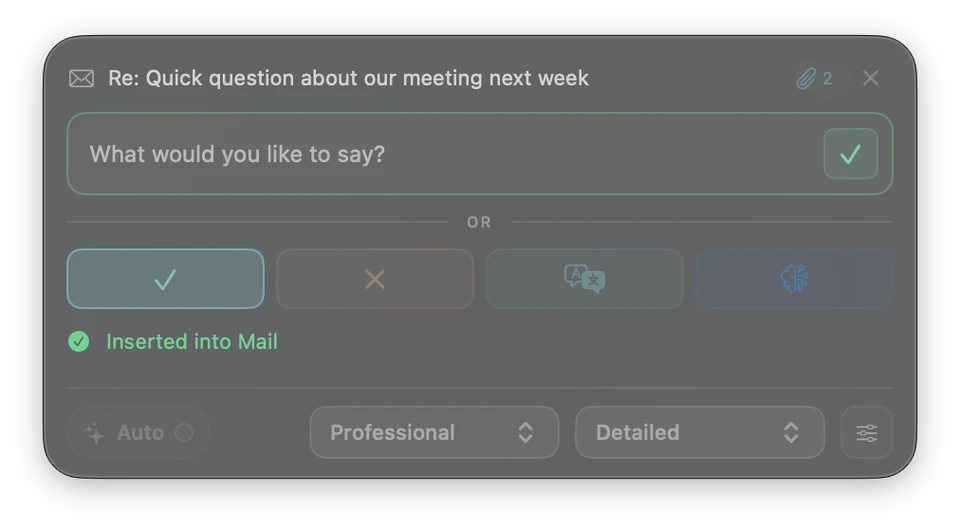
LittleDraft can insert the reply above your signature and quoted conversation in a supported Mail draft. If it can’t identify the insertion point, copy the suggested text instead.
Read it, edit anything you like, and send it yourself in Apple Mail.
Choose when drafting starts.
On-demand replies start when you ask. Optional Auto-write prepares wording when you open a reply in Mail.
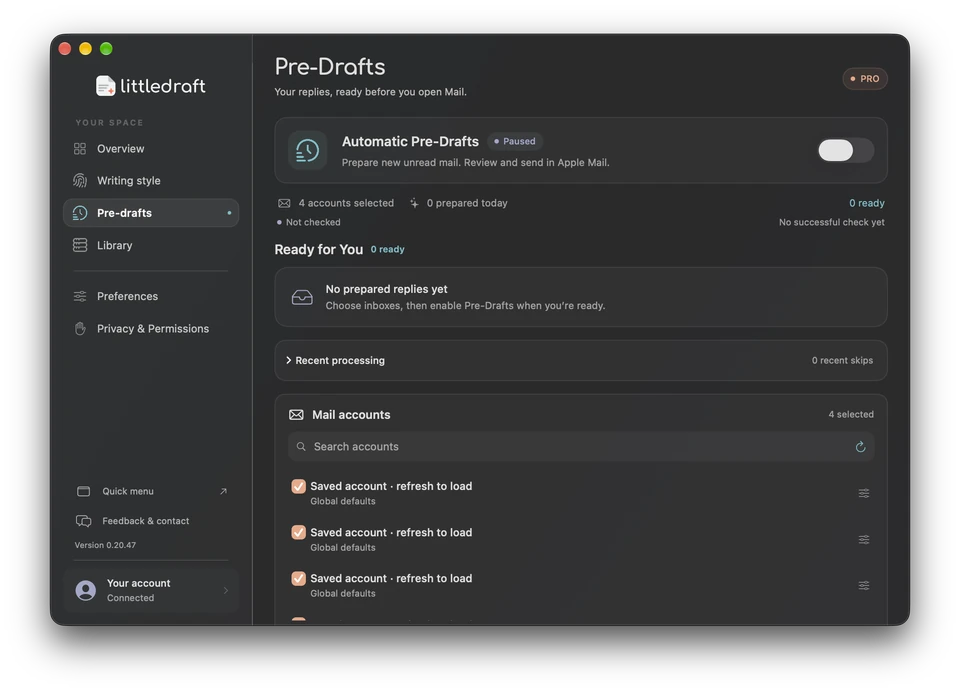
With Pro, automatic Pre-Drafts can prepare suggestions for eligible new unread messages before you open them, while LittleDraft is running. Choose the accounts, working hours, and daily limit; every suggestion waits for your review.
Space for more than a quick answer.
Use the full editor to start a new email or respond to an imported letter. Add instructions and reference material, then review the suggested alternatives.
You can also translate an incoming message for easier reading and draft a reply in the conversation’s language.
A native companion to Apple Mail.
LittleDraft stays close through its menu bar and configurable keyboard shortcuts, working with accounts already set up in Apple Mail. AI access is included, with no separate OpenAI account or API key.
Mail and Accessibility permissions support the integration; AI drafting requires an internet connection.