
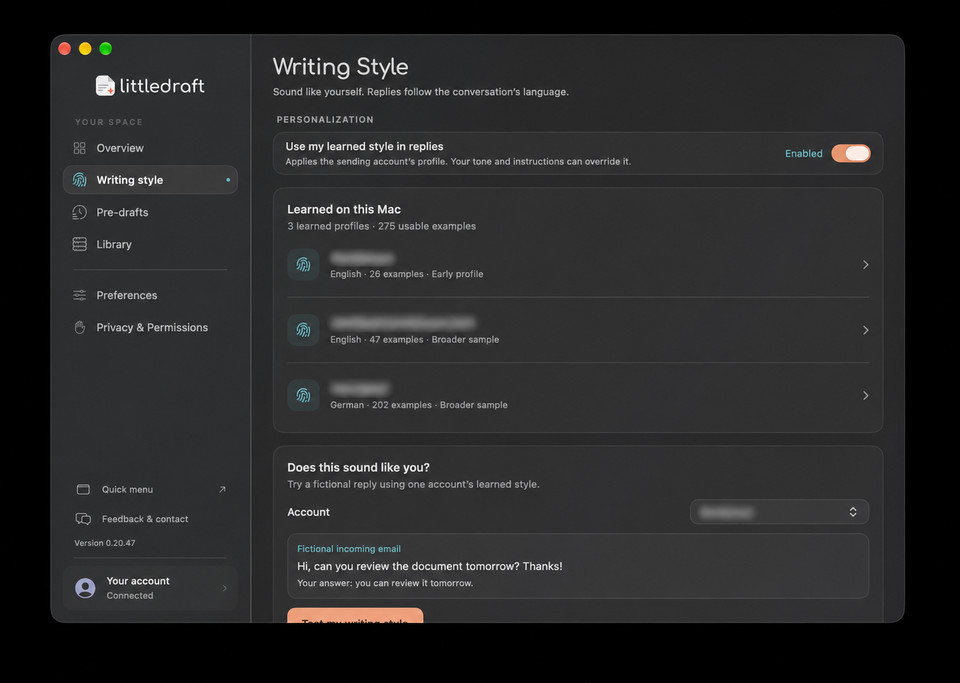
Start with examples you choose.
Select the Apple Mail accounts, Sent folders, and time period LittleDraft can learn from. It samples useful examples and analyses their writing style on your Mac.
You can review the learned profiles before using them for replies.
Keep each account’s writing distinct.
A concise work email and a relaxed personal reply can have different profiles. LittleDraft considers language, formality, typical length, greetings, and recurring phrasing.
The profile guides new drafts using the examples available; you can still adjust any reply before sending.
Try it before your next conversation.
Generate a fictional sample reply with an account’s profile and check whether the wording feels right. Rescan to refresh the examples, remove a profile, or turn style matching off.
Reviewing a sample gives you a useful starting point for fine-tuning your settings.
Your instructions set the direction.
Choose a different tone or length for an individual message, even when style matching is enabled. A formal customer reply and a brief confirmation can each get different instructions.
Add reference documents when the reply also needs product details, policies, or other information.
Understand the local and online steps.
Style analysis runs locally on your Mac. When you generate a reply, relevant style hints accompany the email and permitted context through LittleDraft to OpenAI.
Sharing historical writing excerpts is a separate optional setting; the data and permissions guide explains the controls.