
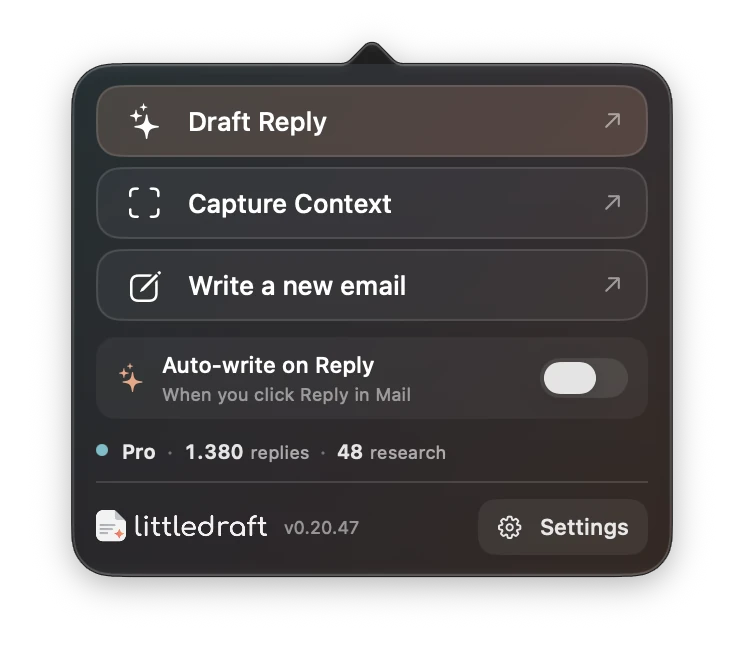
Auto-write and Pre-Drafts are different
Auto-write starts when you begin replying in Mail. Pre-Drafts check selected unread inbox messages ahead of time. Enabling one does not mean you have enabled the other. Both prepare wording; neither gives LittleDraft permission to send an email.
Turn Auto-write on
- Open the LittleDraft menu and find “Auto-write on Reply.”
- Check that the intended AI processing mode is selected and ready.
- Enable the switch, then open a simple email in Mail and click Reply.
- Wait for the draft to finish. Review its facts and recipients in Mail before sending.
The app needs access to recognize the Mail reply workflow. Routine replies can be inserted directly. More complex cases may show complete emails for review, and an unverified or changed target can require a manual handoff. If you want to enter instructions before every draft, leave Auto-write off and invoke LittleDraft manually.
Example: acknowledgement versus a decision
Suitable simple case: “Thanks for sending the notes.” A neutral acknowledgement may be a useful first draft.
Needs your intent: “Can you approve this refund and deliver a replacement tomorrow?” The app cannot know whether you approve or have stock. Review the draft and provide your decision; do not treat an inferred response as authorization.
Your direction: “Acknowledge the issue. Ask for the order number. Do not approve a refund or promise next-day delivery.”
What it uses
Auto-write uses the current conversation, reply defaults, an enabled account style, and relevant authorized context. A saved capture can be included when matching finds it relevant. Old or broadly shared Library material should be cleaned up before you rely on automatic drafting.
Processing and credits
In Cloud AI, a successful automatic generation uses a cloud reply credit, even if you later decide not to send the email. In activated Pro Private Mode, the generation runs locally without cloud reply credits, within local model and language limits. A fresh generation after an edit or retry is a distinct operation.
Pause or stop it
Switch Auto-write off in the menu when you prefer a manual workflow. Pausing the assistant also prevents its automatic work while paused. Closing or changing the Mail draft can invalidate a pending result; reopen the correct conversation and invoke drafting deliberately rather than attempting to force a stale result into another email.
If nothing happens
Confirm the switch is on, the assistant is not paused, Mail and Accessibility permissions are available, and Account/AI readiness is healthy. Test the manual Draft Reply action on the same simple message. If the manual action works but automation does not, record the exact trigger and app version for support without sharing private email content unnecessarily.