
Your starting point
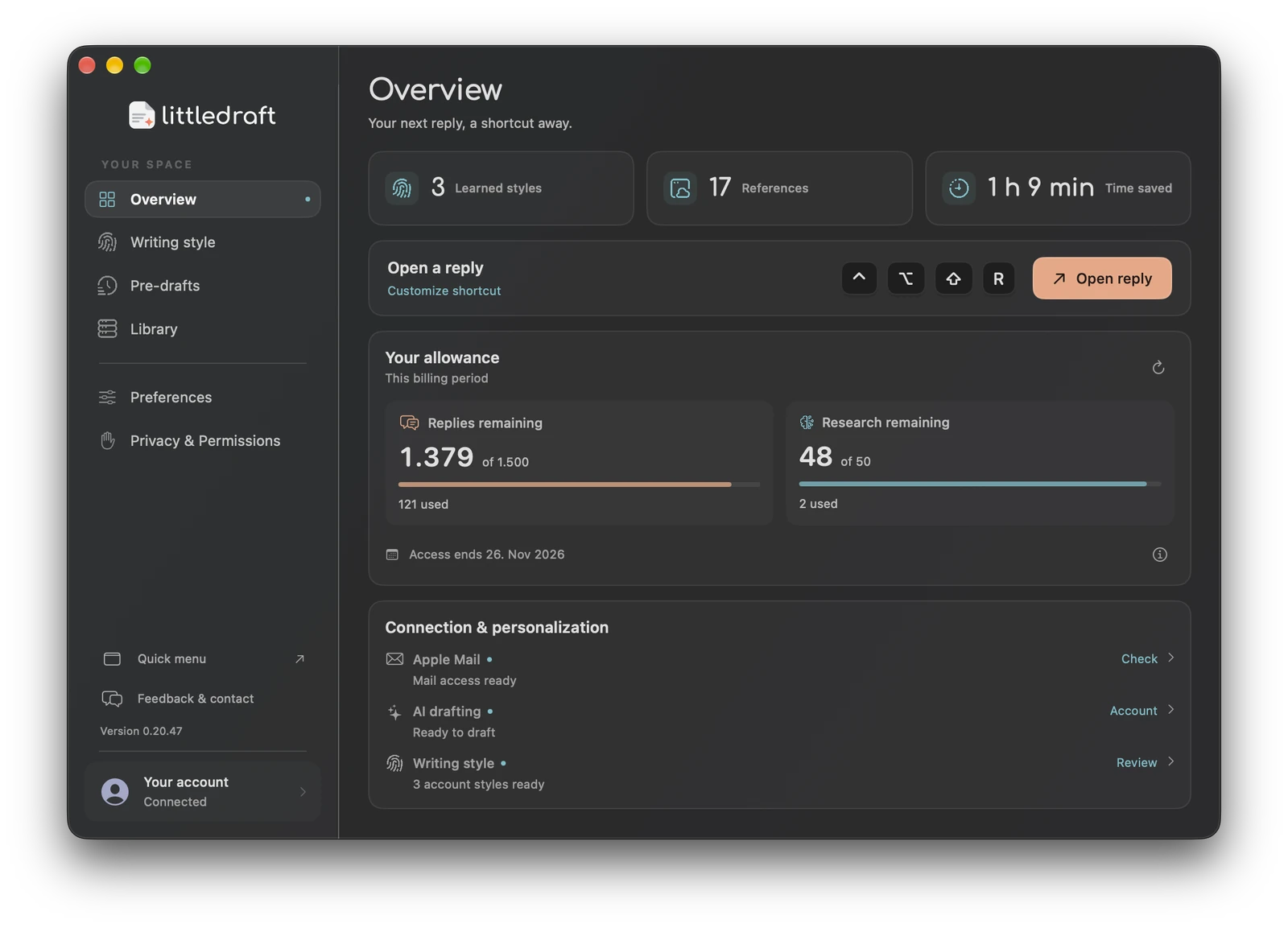
Overview brings together the reply shortcut, learned-style count, saved-reference count, estimated time saved, cloud usage, and connection/readiness information. It is a status dashboard, not a separate inbox or a list of messages LittleDraft has sent.
Check the essentials before drafting
- Confirm Mail access is ready and the intended account works in Apple Mail.
- Check AI readiness. In Private Mode this includes local-model and activation readiness; in Cloud AI it includes the service and account state.
- Check the cloud allowance if you intend to use a cloud operation.
- Review the writing-style count and open Writing style if the desired account has no usable profile.
- Use Open reply or the displayed shortcut to start with the selected Mail message.
Read usage correctly
The current billing period determines paid cloud allowance resets. A visible access-end date is the account’s known period, not a new renewal promise. Account refresh may be needed after a purchase or renewal. If the connection fails, a previously displayed balance is not proof that a new cloud request is authorized.
Reply and research balances are separate. Local Pro drafting does not spend cloud reply credits. A completed cloud operation can reduce the balance even if you later edit or discard its wording. Choosing an existing suggestion does not create a new chargeable generation.
Estimated time saved
The time-saved figure is an estimate based on app activity, not a measured stopwatch comparison with your manual writing. It is useful as a personal indicator, not proof of an exact productivity gain, financial return, or time saved for every message.
Example: diagnosing “not ready”
You can see a writing profile and saved documents, but AI drafting is unavailable. Those local items do not prove account or model readiness. Open the AI or Account status to check whether sign-in, connectivity, allowance, activation, or Apple Intelligence needs attention. Do not delete a working Library just to fix a cloud connection.
Use the destination controls
Connection and personalization rows lead to the workspace that owns the setting. Manage profiles in Writing style, sources in Library, account access in Account, and system authorizations in Privacy & Permissions. Changing a visible dashboard default does not revoke a macOS permission; use System Settings for that.
When the numbers look wrong
Refresh Account, check which account is signed in, and note the actual billing-period dates. A plan change, incomplete payment, or service issue may need support. Send the app version, the affected screen, and a description of what you expected; redact customer content and payment details in screenshots.
Activity and privacy in 0.20.57
Overview now shows Replies drafted, Time saved and Ready to review, followed by Recent activity for replies you used. Recent activity stays encrypted on this Mac. In Privacy, turn off Show email subjects in Recent activity to hide subjects, or choose Clear to remove the activity history. Private AI also shows the beta notice: replies can be shorter and less accurate than Cloud AI.