
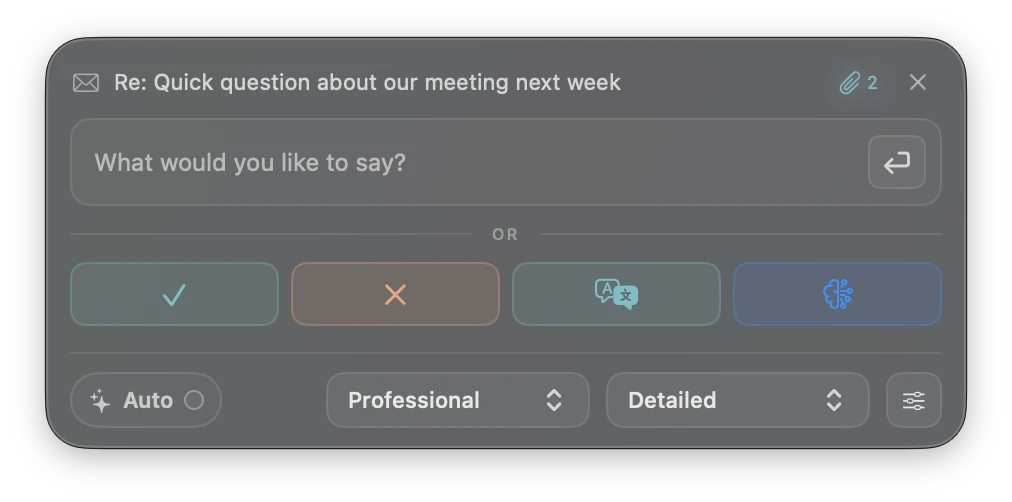
The everyday workflow
- Select the incoming email in Apple Mail. If you already have a reply window open, make sure it belongs to the intended conversation.
- Choose Draft Reply from the LittleDraft menu or use your configured reply shortcut.
- Check the subject shown in the compact window. It should match the message you intend to answer.
- Type a short instruction or choose a quick action. Add the facts the sender cannot know from the conversation.
- Review the complete generated wording in Mail or the review interface. Make any final edits, then send in Mail.
Routine cases can place a complete draft directly in the verified Mail reply window. A case that needs review or cannot be inserted safely may show a review or copy workflow instead. “Inserted into Mail” means a draft was placed; it does not mean the email was sent.
A worked example
Incoming message: “Can we move Tuesday’s meeting to Wednesday afternoon? Could you send the proposal before then?”
Your direction: “Wednesday afternoon works. I’ll send the proposal tomorrow. Ask whether 3 pm suits them.”
Hi Alex,
Wednesday afternoon works for me. Would 3 pm suit you?
I’ll send the proposal tomorrow so you have time to review it before we meet.
The date and proposed time come from your instruction. The model should not invent your availability. This is illustrative wording, not a guaranteed result.
What LittleDraft uses
The selected email or available quoted conversation gives the model the immediate context. Your instruction provides intent. An enabled account-specific writing profile adds style hints. Authorized, relevant Library excerpts or captures may supply factual context. LittleDraft does not obtain every historical message in a conversation or read an entire external business system simply because it is open.
Suggestions, changes, and credits
Cloud generation can return up to two suggestions in one successful request. Selecting an already generated alternative does not start another request. Regenerating, translating, or asking for a new refinement does. Private Mode uses Apple’s local model and may return one result; do not expect the two cloud alternatives in every mode. Local drafting does not spend cloud reply credits.
Before you send
- Check To, Cc, and Reply All recipients in Mail.
- Confirm dates, amounts, order identifiers, promises, and attachments against the actual source.
- Make sure your existing signature and quoted text look correct.
- Attach any file you promised. Writing “attached” does not attach a file.
If insertion is unavailable
Use the offered Copy or manual handoff, return to the correct Mail draft, and paste above the signature and quoted conversation. If Mail changed while generation was running, review the target again. Never paste repeatedly into an uncertain window just because the first handoff did not look right.
Insertion recovery in 0.20.57
LittleDraft protects the clipboard during insertion and rechecks the target Mail draft and field immediately before pasting. Mail-generated Smart Reply suggestions and signature images are handled more reliably. If the draft connection was lost, select Recheck & insert to reconnect to the intended draft. Review the inserted text and send manually.