
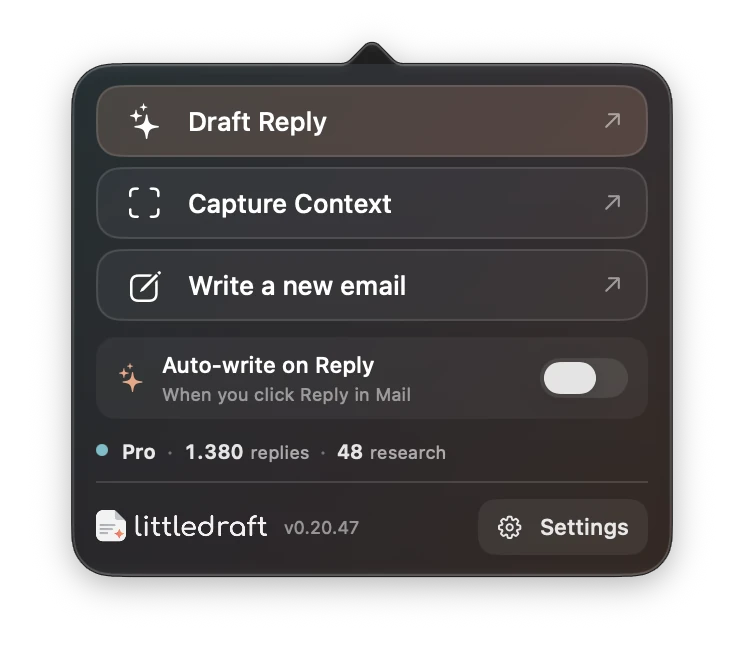
What the menu offers
Open LittleDraft from its menu-bar icon to access Draft Reply when Mail is active, Capture Context, Write a new email, the Auto-write switch, status information, and Settings. The visible actions can vary with the active app and current state. For example, outside Mail the menu can offer a route back to an open Mail draft.
Understand the reply shortcut
In Mail, the shortcut opens the compact reply workflow for the active draft or selected email. Elsewhere, it can open the separate new-email/document composer. This context-sensitive behavior is intentional. Make sure Mail is the active application if you expect to answer the selected email.
Read the actual key combination shown in Overview or Preferences → Shortcuts. Upgraded installations and customized shortcuts may differ. Do not rely on a screenshot of someone else’s shortcut as a universal default.
The Capture Context shortcut is also context-sensitive: outside Mail it captures screen text; in Mail it can open Quick Reply. To deliberately capture a different app, bring that app to the front before using the shortcut, or use the explicit Capture Context menu action.
Set or change a shortcut
- Open Preferences → Shortcuts.
- Choose the reply or capture shortcut you want to change.
- Record a combination that includes the required modifiers and inspect the conflict feedback.
- Save it, then test in Mail and another app.
- If another app already uses the combination, choose a different one rather than assuming LittleDraft can override it reliably.
The reply and Capture Context shortcuts must be different. A disabled or unassigned capture shortcut does not disable the menu action. You can turn a shortcut off, restore an offered default, or use menu actions instead.
A two-step workflow
Show an order page in your browser and invoke Capture Context. Inspect the saved text in Library. Switch to the customer email in Mail, invoke Draft Reply, and type “Use the saved details for order DEMO-1042; explain the current status.” Separate shortcuts make the capture and reply actions deliberate.
Status indicators
The menu can show account access, cloud balances, Private Mode, assistant pause state, prepared-reply counts, and a brief capture-save indication. Treat those as status, not proof that a message has been sent or a business action completed. Open Overview or the relevant workspace for detail.
If a shortcut does nothing
Check that the shortcut is enabled, LittleDraft is running and not paused, and the combination is not claimed elsewhere. Open Settings and inspect any recorder or registration error. Test the matching menu action. If the menu action works, the issue is likely shortcut registration or focus; if neither works, check Account, AI readiness, and permissions.
If the wrong workflow opens
Bring the intended Mail window to the front, select the message, and try again. Close stale reply popups when moving between unrelated conversations. If LittleDraft cannot verify the active target, use the manual composer or copy handoff and inspect recipients in Mail.
Shortcut reliability in 0.20.57
The reply window opens on the appropriate display, unavailable shortcut registration is retried, and pressing the shortcut during an insertion does not start a duplicate insertion. Interrupted drafting releases the window so you can retry. If insertion needs reconnection, use Recheck & insert on the intended Mail draft.