
What you need
LittleDraft is a native companion to Apple Mail on macOS 15 or later. It works with the mail accounts you already use in Mail; it does not replace your email provider. For cloud drafting you need an internet connection and available trial or paid-plan credits. Pro Private Mode has separate requirements: an Apple silicon Mac, macOS 26 or later, Apple Intelligence enabled, and its downloaded model.
Install the app
- Download LittleDraft from the official website.
- Open the disk image and drag LittleDraft into Applications. Launch the copy in Applications rather than keeping the app on the mounted installer.
- Open Apple Mail and confirm that the account you want to use can receive and send messages normally.
- Follow LittleDraft’s welcome flow and sign in through Account. Return to the app after the browser finishes authentication.
Keep one installed copy of LittleDraft. Opening an old copy from Downloads or an installer can make permission and update troubleshooting confusing. If macOS shows an unexpected security or signature warning, download a fresh official copy and contact support rather than disabling system protections.
Choose permissions by feature
Allow Apple Mail Automation when you want LittleDraft to read a selected message, learn from chosen Sent folders, or check selected inboxes for Pre-Drafts. Accessibility supports finding a Mail draft and inserting text. Screen Recording is needed only for Capture Context, and Notifications are optional for prepared replies. You can start with manual drafting and add other permissions later.
Make it yours
- Open Writing style and select the accounts, Sent folders, and periods you want sampled.
- Choose a reply shortcut in Preferences. The actual combination shown in your app is authoritative, especially if you have customized it.
- Set a preferred tone and length. Choose “Match my writing style” when a learned profile is ready.
- In AI Processing, choose Cloud AI or activate Pro Private Mode on a supported Mac.
Style learning is local and consumes no AI credits. Generating a sample reply is a separate AI operation. You can skip learning and still write using the tone controls.
Try a low-stakes first message
Use a simple meeting request or a fictional test email. Open it in Mail, invoke Draft Reply, and type a direction such as “Wednesday afternoon works; ask which time suits them.” Review the result, recipients, and signature, then send from Mail yourself. LittleDraft does not send the message for you.
If setup stalls
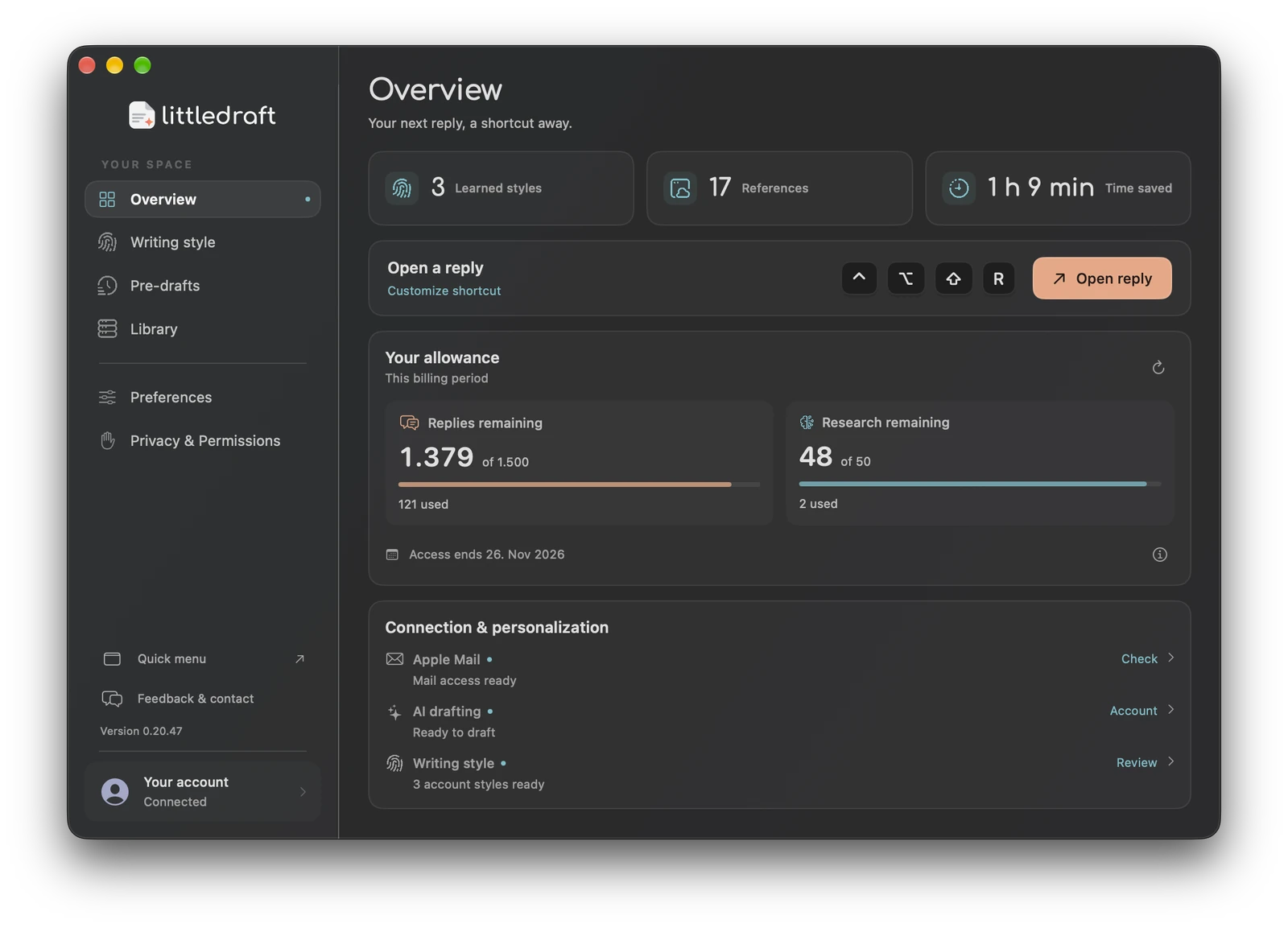
Check Overview for the Mail connection, AI readiness, account state, and style status. If sign-in finishes in a browser but Account is still disconnected, return to LittleDraft and refresh. If Mail access is denied, enable LittleDraft in System Settings → Privacy & Security → Automation. See the troubleshooting guide before reinstalling or deleting local data.