
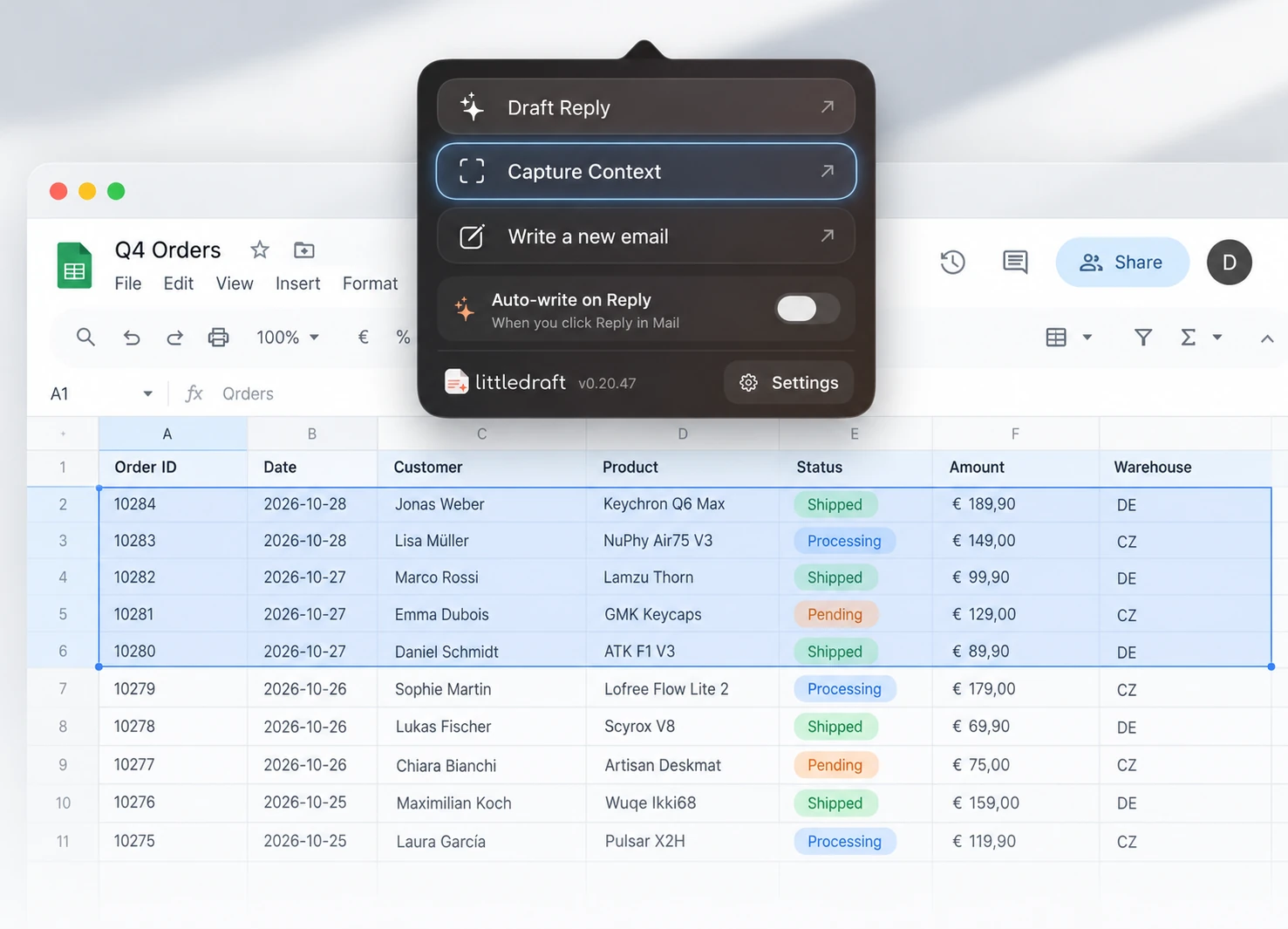
What Capture Context does
Capture Context is a Pro feature for bringing visible information from another app into LittleDraft. It takes one snapshot of the display under your pointer and recognizes text on your Mac. It is not a continuous video recording, and there is no window or area picker in the current workflow.
The recognized text is saved directly into the encrypted Library. Successful capture gives a brief menu-bar confirmation rather than opening a mandatory review window. Screenshot images are not saved or uploaded. The text can later support relevant replies and enabled Pre-Drafts, so review what you captured before relying on it.
Capture and use information
- Show the relevant spreadsheet, order page, website, or document. Close or hide unrelated sensitive content on that display.
- Place your pointer on the display you want captured.
- Choose Capture Context from the menu bar, or use its assigned shortcut.
- If macOS asks, grant Screen Recording access for LittleDraft. You may need to restart the app after changing the permission.
- Open Library to inspect the saved text. Correct recognition errors, keep the relevant record, and remove anything that should not be reused.
- Return to Mail and request a reply that uses those facts. Check the included evidence through Reply context where available.
Worked example: an order update
Visible source: Order DEMO-1042; customer Alex Morgan; product desk mat; status “Processing”; requested ship date 12 November.
Your direction: “Use the saved order details. Explain that it is still processing. Don’t claim it has shipped.”
Hi Alex,
Your desk mat order DEMO-1042 is still processing. The order lists 12 November as the requested ship date; I’ll let you know once dispatch is confirmed.
The source’s requested date is not a guaranteed delivery date. A shipping label or tracking number alone does not prove dispatch or live carrier status.
Account scope and persistence
Saved captures are available across LittleDraft and can be considered for replies from different Mail accounts. Do not assume a capture is restricted to the message or account that happened to be open. Use Library controls to inspect, edit, exclude it from automatic matching, or delete it. Retention settings determine how long saved content remains.
Accuracy and privacy
OCR can miss punctuation, change spacing, confuse characters, or associate neighbouring columns incorrectly. Compare important identifiers, dates, amounts, and recipient names with the original display. Common-secret filtering is a best-effort aid, not a guarantee that all sensitive text is removed.
In Cloud AI, selected relevant recognized text can be included in the drafting request. In Private Mode, AI drafting stays on the Mac. Screen Recording permission is broad enough to capture the whole chosen display, even though LittleDraft takes only one snapshot when invoked.
If capture fails
Check your Pro access, Screen Recording permission, and available Library capacity. If the text is too small or nothing readable is found, zoom the source and capture again. If you captured several orders or labels, keep only the correct record in the saved text before drafting. Re-capture information when the source changes.
More selective capture matching in 0.20.57
LittleDraft selects captures that match the email and leaves unrelated captures out. When a screen contains several orders, matching narrows the context to the order named in the email; other customers’ details must not be used. Inspect the selected context before sending, especially when OCR text is incomplete. Captures in Library are now named from their content.